Have WiFi dead zones, video calls failing, streaming buffering on the far side of the house? It’s likely that the ISP router you have is struggling doing its best from a corner of the house or basement.
I’ve been running a UniFi network at home for a while now and it’s been rock solid, so I put together a breakdown of the realistic options — ranging from a simple AP add-on all the way to replacing the router entirely with a camera-capable gateway.
All prices are current as of March 2026 from the Ubiquiti store.
Background: UniFi without a controller
UniFi APs can be set up via the mobile app in “standalone mode” — no controller required. This works fine for a single AP but comes with real trade-offs: no seamless roaming, no remote management, no automatic firmware updates, and no VLANs or guest networks. For anything beyond one AP, you want a proper controller — which is exactly what the gateway options below include built-in.
Option 1
Add a single AP to the existing ISP router
U7 Lite (WiFi 7) + PoE injector
~$115
U7 Lite $99 + injector ~$16
The lowest-friction option. The ISP router stays in place — you add one UniFi AP in a dead zone area and manage it via the UniFi mobile app. Good for fixing one specific problem area without touching anything else.
Best for
Homes with dead zones in 1–2 specific rooms where replacing the router isn’t on the table. Quick to deploy, no network changes required.
Limitations
- No seamless roaming between router WiFi and AP
- Mobile app management only; no remote access
- No automatic firmware updates
- Adding a second AP is messy in standalone
- No camera support
cheapest entry
no router change
mobile app only
no roaming
not expandable cleanly
Option 2
Replace the ISP router with the UniFi Express 7
UniFi Express 7 (UX7) — gateway + WiFi 7 AP in one unit
$199
All-in-one, no extras required
The UX7 is a compact all-in-one: full gateway/router and WiFi 7 access point in one small desktop unit. It runs UniFi OS with the full controller built in — remote management, automatic updates, VLANs, guest networks, and the ability to adopt additional APs in the future. A meaningful step up from any ISP router.
Best for
Smaller homes (≤1,750 sq ft) where a single centrally-placed unit covers the whole floor plan. Replaces the ISP router entirely with one clean device.
Limitations
- Only 2 LAN ports — external switch needed for multiple wired devices
- 2×2 MIMO only (solid for homes, not high-density)
- No camera/NVR support
full UniFi controller
WiFi 7
clean single device
only 2 LAN ports
no cameras
Option 3
Best all-around value
UniFi Express 7 + one ceiling AP
UX7 gateway + U7 Lite ceiling-mounted access point
$298
UX7 $199 + U7 Lite $99
The sweet spot for most homes. The UX7 handles routing and acts as the controller; the U7 Lite mounts on the ceiling in the center of the house (or upstairs) for optimized coverage. Both radios participate in seamless roaming — devices hand off automatically as you move around.
Best for
Works best when the ISP line already terminates on the first floor or in a central location — the UX7 covers that area while the U7 Lite handles the rest (upstairs, far wing, etc.). Full controller with seamless roaming between both radios.
Limitations
- U7 Lite needs PoE — uses UX7’s PoE LAN port or a ~$16 injector
- UX7 has only 2 LAN ports total; external switch likely needed
- No camera/NVR support
- If the ISP line enters in a basement or far corner, Options 4 or 5 give better flexibility
seamless roaming
ISP line already central/floor 1
full UniFi controller
WiFi 7
switch recommended
no cameras
Option 4
Cloud Gateway Ultra + 2 ceiling APs
UCG-Ultra dedicated gateway + 2× U7 Lite APs
$327
UCG-Ultra $129 + 2× U7 Lite $198
The UCG-Ultra is a dedicated gateway — no built-in WiFi — paired with two ceiling-mounted APs for full-house coverage. It has 4 GbE LAN ports (vs the UX7’s 2), a 2.5 GbE WAN port, and 1 Gbps IPS routing. This combo actually comes in cheaper than Option 3 while delivering two APs and more ports. Since the gateway has no radio, its placement is irrelevant to WiFi quality — APs go where coverage is needed.
Best for
Homes with known dead zones needing two APs — one per floor or one per wing. Particularly good when the ISP line enters in a basement or utility closet since gateway placement doesn’t affect WiFi coverage.
Limitations
- No built-in WiFi — fully dependent on APs
- No camera/NVR support (UniFi Network only)
- Hard cap at 1 Gbps — fine for most homes, not for multi-gig fiber
- Both APs need PoE — a small PoE switch (~$109) is the cleanest solution
4 LAN ports
full 2-AP coverage
seamless roaming
PoE switch recommended
no cameras
Option 5
Cloud Gateway Max + 2 ceiling APs
UCG-Max camera-capable gateway + 2× U7 Lite APs
$397
UCG-Max $199 + 2× U7 Lite $198
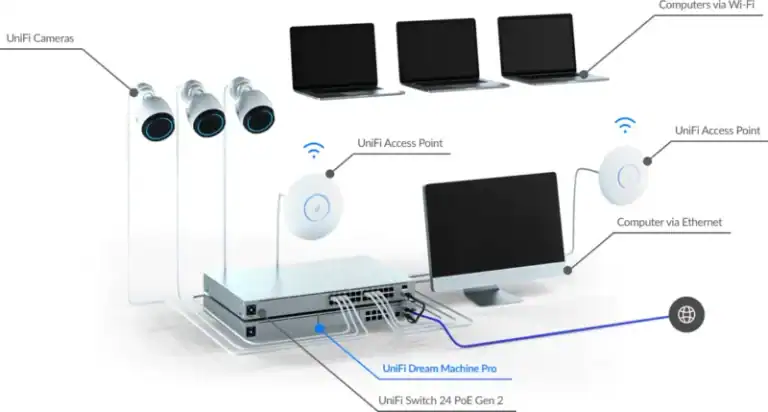
The UCG-Max adds one critical feature over Option 4: it runs UniFi Protect — Ubiquiti’s camera/NVR platform — in addition to UniFi Network. Add a doorbell, driveway camera, or Ring replacement and record locally to an M.2 NVMe SSD with no monthly cloud subscription. For anyone even considering a camera or two, this is worth the $70 premium over Option 4.
Best for
Anyone who wants to add UniFi Protect cameras now or later, plus full two-AP coverage. Recordings stay on your local drive — no cloud subscription ever. 2.5G WAN, 1.5 Gbps IPS, 4 LAN ports.
Limitations
- Storage drive + M.2 tray sold separately (~$49–99 total)
- APs and cameras both need PoE — switch effectively required
- Not suitable for more than 2–3 cameras (see below)
camera-ready (UniFi Protect)
no cloud subscription
full 2-AP coverage
seamless roaming
drive + tray not included
PoE switch required
None of these options are good for: more than 2–3 cameras
Options 1–4 have no camera support whatsoever. Option 5 (UCG-Max) can handle a doorbell or single outdoor camera cleanly, but it is not a dedicated camera system — one drive bay with no redundancy, limited PoE budget, and performance degrades under a heavier camera load. If you want 4+ cameras covering multiple zones, the UCG-Max will start to feel stretched.
Scaling cameras without replacing the network: UNVR Instant
The UniFi Network Video Recorder Instant ($199) pairs with any gateway above — it just needs a network connection. It adds a 6-port PoE switch (powers cameras directly), a 3.5″ HDD bay for local recording, HDMI output for local viewing, and support for up to 6 cameras at 4K or 15 at 1080p. Full UniFi Protect platform — AI detection, motion alerts, remote viewing — with no subscription fees.
Ubiquiti also offers a 4-camera starter kit for $699 that bundles the UNVR Instant with a 1TB HDD and four G5 Turret Ultra cameras — a complete system out of the box. Adding this to Options 3, 4, or 5 gives a proper camera setup without touching any of the networking gear.
Summary
| Option |
Hardware |
Cost |
Controller |
APs |
Cameras |
| 1 — AP only |
U7 Lite + injector |
~$115 |
None (standalone) |
1 |
No |
| 2 — Express 7 only |
UX7 |
$199 |
Full UniFi OS |
1 (built-in) |
No |
| 3 — Express 7 + 1 AP ⭐ |
UX7 + U7 Lite |
$298 |
Full UniFi OS |
2 |
No |
| 4 — Ultra + 2 APs |
UCG-Ultra + 2× U7 Lite |
$327 |
Full UniFi OS |
2 |
No |
| 5 — Max + 2 APs |
UCG-Max + 2× U7 Lite |
$397 |
Full UniFi OS |
2 |
Yes (Protect) |
Prices current as of March 2026 from store.ui.com. PoE switches and injectors sold separately where noted.
Bonus tip
Be a good neighbor: stop cranking your transmit power to max
While you’re setting up your new gear, you’ll likely see settings for transmit power on both the 2.4 GHz and 5 GHz radios — and the temptation is to crank both to maximum. It feels logical: more power = better signal = better WiFi. This is wrong, and here’s why.
WiFi is a two-way conversation, not a broadcast
Your access point and your device — phone, laptop, TV — both need to hear each other. The AP might be able to blast a signal at max power across the house and into the neighbors’ yard. But your phone has a tiny antenna and a fixed, low transmit power it can’t change. It’s still whispering back from the bedroom while your AP is shouting from the living room.
What actually happens when you yell too loud
- Your devices see the AP signal as strong, so they stay associated to it — even when they’d get better performance by roaming to a closer AP
- You bleed signal into neighboring homes, increasing interference on shared channels for everyone on the block
- Your neighbors’ APs — also probably set to max — bleed back into your home, creating a neighborhood-wide shouting match where nobody wins
- Higher transmit power on 2.4 GHz is especially bad: the band is already congested, longer range means more overlap with more neighbors, and it does nothing to improve the uplink from your device back to the AP
What to do instead
Set transmit power to Auto or Medium and let the AP figure it out. UniFi’s auto mode is genuinely good at this — it adjusts based on the environment and connected clients. If you have multiple APs, lower power on each encourages devices to roam to the nearest one rather than stubbornly clinging to the far one through three walls.
The right mental model: good WiFi is about coverage where you need it, not signal strength as far as possible. Place APs well, use appropriate power, and your neighbors will silently thank you — even if they never know why their WiFi got a little better too.